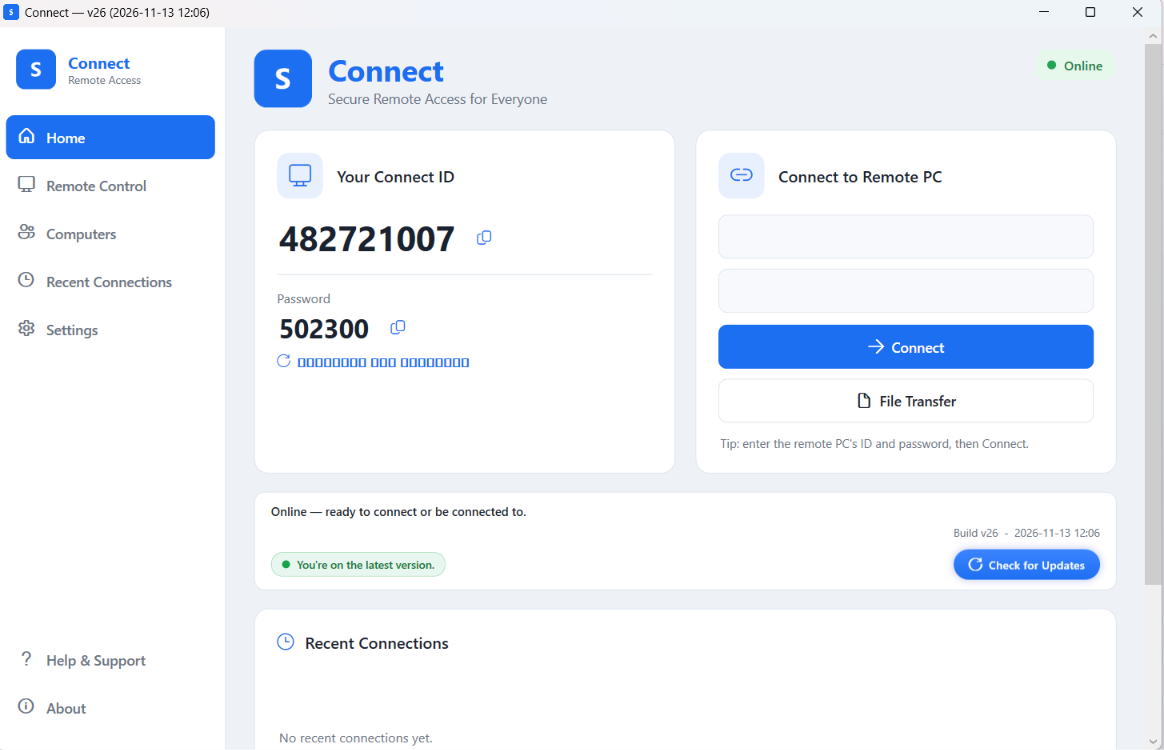
Connect packs professional remote-desktop capabilities into a single lightweight app — simple enough for a one-time support call, powerful enough to run every day.
Full remote control
See the remote screen in real time and control its keyboard and mouse as if you were sitting in front of it.
Unattended access
Set a permanent access password and reach a computer anytime — perfect for servers and office machines, even when no one is there.
End-to-end encryption
Every session is encrypted with DTLS and protected by a per-session Security Code that guards against man-in-the-middle attacks.
Works through any firewall
A direct peer-to-peer link where possible, with an automatic encrypted relay fallback — so it connects through NAT and strict firewalls without setup.
File transfer
Move files between the two computers during a session — no email, cloud drive, or USB stick required.
Automatic, signed updates
Connect keeps itself current with cryptographically verified updates, so every device stays on the latest secure version.
How it works
Connected in three steps
No accounts to create, no network configuration. Install, share an ID, and you're in.
1
Install Connect
Download and run the installer on both computers. It installs in seconds, with no admin rights required.
2
Share the ID & password
Each computer gets its own permanent Connect ID. The person being helped shares their ID and access password.
3
Connect securely
Enter the ID, verify the Security Code, and you're controlling the remote desktop over an encrypted link.
Security
Private by design
Remote access is only useful if it's trustworthy. Connect is built so that your sessions stay between you and the machine you're reaching — and no one else.
Encrypted sessionsScreen, input, and files travel over an encrypted DTLS channel.
Anti-MITM Security CodeBoth sides can verify a matching Security Code before trusting a session.
Password-gated & approval-basedConnections need the right ID and password, and attended sessions ask for approval.
Signed, verified updatesUpdates are checked against a pinned signature before they ever install.
Download
Get Connect for Windows
A single, lightweight installer. Install, launch, and you're ready to connect — no account needed.
The output must match the value above. If it does not, do not run the file — re-download it.
A note on the Windows security prompt. On first run, Windows may show a “Windows protected your PC” (SmartScreen) prompt because this release is newly published. This is expected for new software and does not mean the file is unsafe — you can confirm authenticity with the SHA-256 check above. Managed/enterprise customers: ask your IT team about trusting the Connect code-signing certificate (SaylConnect-CodeSigning.cer) so the prompt does not appear on company PCs.